Transforming Data Management and Reporting
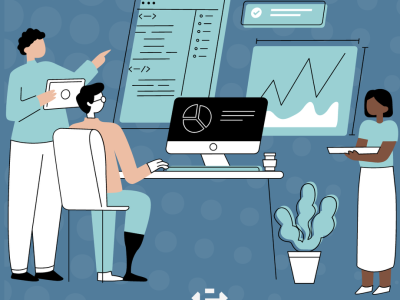
Client Challenge In an era where data is a crucial asset for any organization, our client faced a common yet significant challenge: disparate systems and inconsistent data management practices across …

E-gineering

Client Challenge In an era where data is a crucial asset for any organization, our client faced a common yet significant challenge: disparate systems and inconsistent data management practices across …
Developing in the Salesforce ecosystem can be incredibly rewarding, with its rich functionalities and the vast opportunities it presents. However, setting up a new Salesforce DX (SFDX) project can …
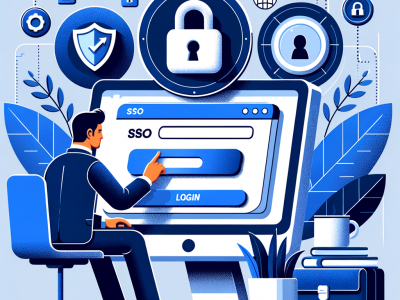
Case Study: Addressing Security Concerns and Legacy System Retirement Background A customer in the healthcare vertical had an aging authentication system that they no longer wished to maintain or …
In the world of custom software development, achieving success hinges on understanding, collaboration, and strategizing. To capture our client’s goals effectively, E-gineering deploys a …
The E-gineering Advocate Program: Fostering Connections, Empowering Careers Over the past several years, E-gineering has witnessed remarkable growth, bringing with it the challenges of expansion. As …
Determining whether your company requires a custom software solution is a critical decision that hinges on a thorough understanding of your organization’s unique operational landscape. Off-the-shelf …
Flexibility Without Scalability As a data professional, clients will often initiate conversations around the latest cutting edge technology in the space. Right now, it’s AI, but in the past it’s been …
Our values of People, Excellence, and Integrity can be expressed in a variety of ways. We want to create patterns of behavior (i.e. culture) that trace to these values. To help with this, we can think …
What is excellence? The Oxford Dictionary defines it as “the quality of being outstanding or extremely good”. Ok, but how do we demonstrate this in a field as complex as software …
A question that we like to ask candidates during an interview is: “Do you like to learn?”. The love of learning is a common thread that runs through the E-g team. We believe that people …
Much has been written about the potential conflict of interest where the professional services industry is concerned. Many have highlighted the temptation that exists when work is billed by the hour. …
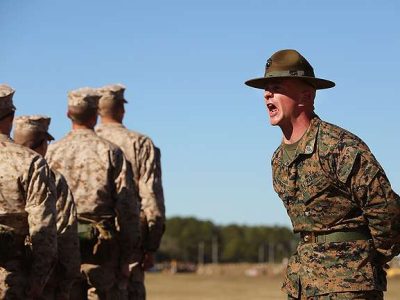
The US Military Recruit Training Programs are known for rapidly transforming individuals into servicemembers who are physically and mentally fit for their duties. They are exceedingly persistent and …
In September 2021 Swift 5.5 was released, and it introduced a new native concurrency model for writing asynchronous and parallel code. This model provides a new syntax for running …
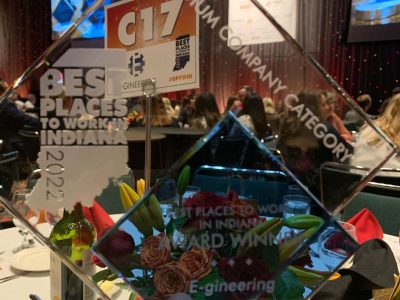
For a 12th year in a row now, E-gineering has been recognized as a best place to work in Indiana. So many people here at E-g are responsible for that – go look at our Whole Team page for the face of …
Before we get started… Surely we can agree that joy doesn’t mean being ecstatic each and every minute. Or as Wyatt Earp comically suggested in the 1993 movie Tombstone, it doesn’t mean we …
Wow. How has it already been one year? A year ago this week, we all went home from work for two weeks. We watched the news and watched the numbers and wrung our hands over toilet paper shortages… and …